Media Layer

Create a media layer
Right click on the  button and select Create Media Layer
Import a media
There are two methods to import a media:
Left Click on the Media menu, then select Open Media. (It will create a media layer then import the media in it at the current frame).
Create a media layer, then drag and drop a media file on the media layer’s timeline at the desired frame.
When importing a video media, it is possible to import only part of it with the following pop up:
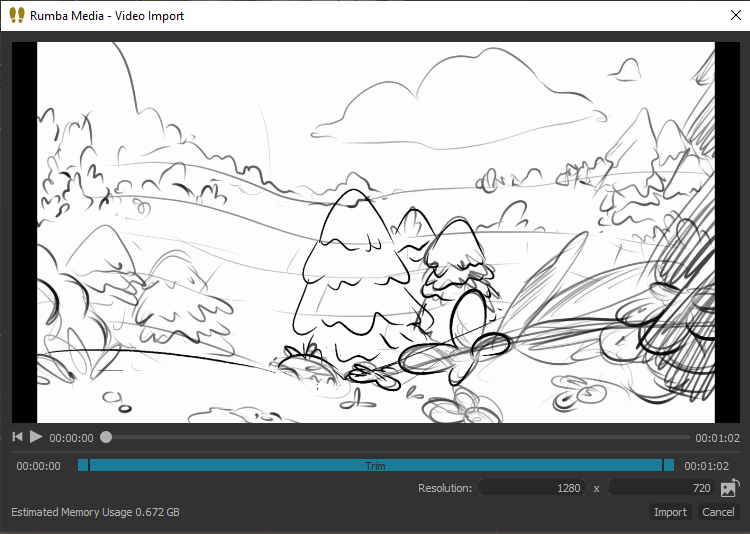
Use the trim bar’s handles to select the part of the video you want to import.
Note
Importing a media in a media layer creates a clip. You can configure its speed, volume and other options using the Attribute Editor.
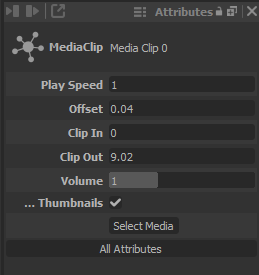
Manipulate a clip
A clip can be positionned anywhere on the timeline using Left click.
By default, the clip will snap to frames. Use Alt + Left click to ignore the snapping.
Note
Alt + Left click also works when resizing a clip.
Cut a clip
It is possible to cut a clip in multiple parts to rearrange them on the timeline. To do so:
Right click on a clip in a media layer then select Cut Clip.
CTRL + Middle click on a clip to cut it at the hovered frame.
Note
It will cut the clip at the clicked frame.
Resize a clip
Left click on one of the far end handle of a clip and drag it to resize a clip.
When two clips are right next to each other, it is possible to select both handles at once to extend one and reduce the other clip.
In the Attribute Editor, use the options Clip In and Clip Out (in seconds) to set the boundaries of a clip.
Drag SHIFT + Left click on a clip to change both Clip In and Clip Out at once, moving the media inside the clip without moving the clip itself.
Note
It is possible to extend clips past their maximum size using ALT + Left Click.
Speed up/Slow down a clip
SHIFT + Left click on a clip’s handle then drag left or right to slow down or accelerate the clip.
When two clips are right next to each other, it is possible to select both handles at once to slow down one and speed up the other clip.
In the Attribute Editor, use the option Play Speed to set the speed of a clip.
Note
You can see the speed percentage on top of the clip in the timeline.