Library
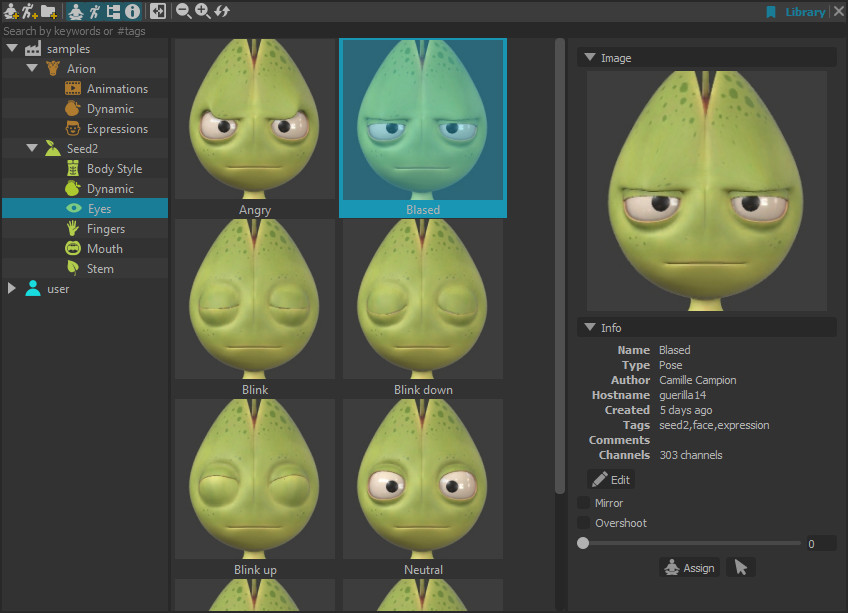
The library is composed of a tool bar, a search bar and three panels, the library tree, the library items and the information view.
The library manages and exploits files that can be used during the animation process, like character poses, character animations or character layer presets (e.g. constraint layers, dynamic layers).
Import a pose
Before to import a library pose, make sure to have nothing selected.
Then choose one of the following methods:
Double click on the pose item. Regarding the Library -> Create Layer On Double Click, a new layer for the pose is created or the pose is imported on the active layer.
Drag the item with the middle mouse button to blend the current pose to the library pose
Use the information view widgets (slider or button)
Use the Right Click -> Apply On Current Layers or the `Right Click -> Import On New Layer` commands on the library item
Import the mirror pose
To import the mirrored version of a pose, check the  button on the library’s tool bar and then import the pose.
A Mirror checkbox is also available in the library information view.
Import an animation
Before to import a library animation, make sure to have nothing selected.
Then choose one of the following methods:
Double click on the animation item. The animation is imported on new layers put on the top of the layer stack.
Use the information view’s Import button.
Use the Right Click -> Import On New Layer command on the library item.
Import some layers
To import some of the animation layers, selection them in the Information view -> Layers section and press the Import button.
Import some controllers
To import a subset of a pose or an animation, select the controllers you want to import, then import the pose or the animation.
Import controller on another asset
To import a pose or an animation on another asset than the one used to create the item, or on an asset with a different name, select the controllers you want to import (or all the asset controllers) and then import the pose or the animation.
Note
Controllers must have the same name in both Assets
Add a pose
To add a new pose in the library:
Setup the main viewport for the screen capture
Select in the library tree the directory where to save the new pose
Select the controllers to save
Press the
 button
In the dialog box, choose the pose details (name, tags and comments) and press Ok
Add an animation
To add a new animation in the library:
Setup the main viewport for the screen capture
Select in the library tree the directory where to save the new animation
Select the controllers to save
Press the
 button
In the dialog box, choose the animation details (name, tags and comments) and press Ok
Save some animation layers
Make sure to activate the layers to save, disable the rest.
Save a part of the animation range
To save a specific range of animation, use the visible animation range and check the Cut the animation at the current range option in the dialog box.
Create a new directory
To add a new directory in the library:
Select in the library tree the location where to create the new directory
Press the
 button
In the dialog box, choose the directory details (name, icon and color) and press Ok
Rename, Edit, Delete an item
To rename an item, right click on the item and press Rename or press F2.
To edit an item, right click on the item and press Edit.
To delete an item, right click on the item and press Delete or press Del.
Replace an item
To replace an item, select the item before to save the pose or the animation.
Change an item’s image
Right click on the item and use the Update Image command.
Open/close the library tree and the information view
To open or close the library tree, use the  button.
To open or close the information view, use the  button.
Zoom the item view
To zoom the items, use the  buttons, use the CTRL +/- shortcuts or use the mouse wheel holding
the CTRL key over the items.
buttons, use the CTRL +/- shortcuts or use the mouse wheel holding
the CTRL key over the items.
Search items
To search library items :
Select the root library directory where to search
Type words or #tags (prefixed by #) in the search bar separated by spaces
Select controllers
Choose one of the following method to select the controllers used in a pose or an animation:
Right click on the item and the use Select Controllers command
Use the information view’s
 button
Add library root directories
To add a library root directory to the library, choose one of the following methods:
Select the root directory using Library -> Root directories.
Define the system environment variable RUMBA_POSE_LIBRARY.
Hide the default library directories
To hide the user library directory, uncheck Library -> Display the user library
To hide the default library samples, uncheck Library -> Display the default library samples
Note
You can also use environment variables to disable those, see RUMBA_LIBRARY_SHOW_USER and RUMBA_LIBRARY_SHOW_SAMPLES