Programmer Guide
Develop in Rumba with Python
Rumba Python Modules
The Rumba Python API is divided in different modules:
- rumba is the Python binding of the Rumba C++ API.
- rumbapy is the a Python module providing different user interface services.
- Imath is a Python binding of the ILM’s Imath library, providing mathematic objects.
- fbx provides FBX file format services.
- rumba_alembic provides Alembic file format services.
Run a Python script using the command line
One way to run a Python script with Rumba is to pass it on the rumba command line.
- Make sure the rumba application is in your PATH variable.
- Open your prefered command shell (gitbash gives good results), and run Rumba using the command line like:
rumba my_project.rumba --script my_script.py --no-gui
This command will open the rumba project and then execute the python script. You can specify multiple scripts.
The command outputs will appear in your shell window (into gitbash, not in cmd.exe).
The –no-gui option let you run Rumba with no graphic user interface. Using this option, you can for example open a document, inspect it, modify it, save it or export geometry caches.
Run a Python command using the command line
You can also execute simple python commands specified on the command line :
rumba my_project.rumba --cmd "print('Hello Rumba')" --no-gui
You can use multiple –cmd (or -c) arguments, they all share the same Python environment.
Using the Rumba’s Script window
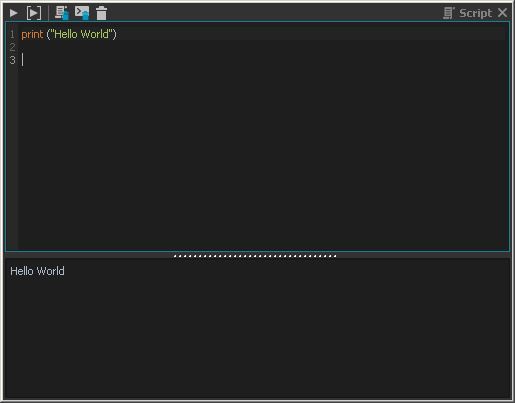
The Script Editor
The other solution is to use the Rumba’s Script window.
- Open Rumba
- Open the script windows (Windows -> Script).
- Type some python code
- Execute it with CTRL+Enter.
The purpose of this editor is simply to run some commands but not to edit a text file. You will probably use your prefered text editor to do that anyway. You can for example source a script file like this:
execfile("my_script.py")
The script editor content is saved with your Rumba preferences.
Execute a Python script at Rumba Start
The first thing you will probably do is running some code at the Rumba start.
To do that, you will have first to set the environment variable RUMBA_USER_PLUGINS with the root path of your Rumba scripts to run.
All the .py files in this folder will be sourced. This is the perfect moment to register your plug-ins or do whatever you want at the Rumba start.
Document management
Save the document
To save the current document :
import rumba
document = rumba.active_document()
document.write("document.rumba")
Scene assembly
Create a node
Create, let’s say a SceneGraphNode node (a simple xform node), named ‘group’ in the document root:
import rumba
node = rumba.Node("SceneGraphNode", "group", rumba.active_document())
For details about nodes and plugs, see the rumba.Node class documentation.
Reference a file
Use the reference function to reference a rig file or an alembic cache.
import rumba
doc = rumba.active_document()
rumba.reference(doc, "$(RUMBA_ROOT)/data/creative_seeds/seed2.rumbanode", "")
rumba.reference(doc, "set.abc", "")
Note that you can use environment variables in the file paths.
Update a reference
Let’s say you want to update a rig filename. You can use the Node.replace_reference function, either if the reference is loaded, or not. Here we will replace “Seed” by a “XKLoor” robot.
import rumba

doc = rumba.active_document()

# Get the root node of the reference
seed = doc.child("seed2")

# Change its reference filename
seed.replace_reference("$(RUMBA_ROOT)/data/creative_seeds/xkLoor.rumbanode")
Inspect the document
Let’s iterator over the nodes in the document root :
import rumba
doc = rumba.active_document()
for node in doc.children():
  print(node.name(), node.type_name())
This will print the name and the type of all the root document children nodes.
Set the animation range
Let’s modify the animation limits and the current animation range. We simply set the documents plugs:
import rumba

start = 100
end = 200

doc = rumba.active_document()
doc.start_frame.set_value(start)
doc.end_frame.set_value(end)
doc.range_start_frame.set_value(start)
doc.range_end_frame.set_value(end)
Export the animation
Export an alembic file
To export the current animation in an Alembic file :
import rumba_alembic, rumbapy
nodes = [] # export all the assets

with rumbapy.Progress("Exporting animation...") as progress:
  rumba_alembic.export_nodes("my_animation.abc", nodes, progress=progress.update)
For details about nodes and plugs, see the rumba_alembic.export_nodes() documentation.
Export the controllers animation to an FBX file
Let’s export the animation of the rig controllers to an FBX file. No geometry will be written, only the animation of the controllers.
This animation can be then imported in another DCC like Maya or a game engine using an existing rig.
import fbx, rumbapy
nodes = [] # export all the assets
frames = [] # export all the frames
ascii = False # we want a binary FBX file
prefix = True # we want the asset names prefixed by the root node name, like Maya would do

with rumbapy.Progress("Exporting animation...") as progress:
  fbx.export_nodes("my_animation.fbx", nodes, frames, ascii, prefix, progress.update)
For details about nodes and plugs, see the fbx.export_nodes() documentation.
Create a playblast
To create a playblast :
def playblast(filename):
    import rumba, rumbapy
    from widgets.main_window import MainWindow # non-documented api

    camera = MainWindow.instance().viewports_manager.main_viewport.camera
    doc = rumba.active_document()
    renderer = rumbapy.playblast.make_renderer()

    overrides = {
            "renderer":{
                "height": 100,
                "width": 100,
                "onion_skin":{
                    "enable": 0
                }
            },
            "audio":{
                "enable": False},
    }

    rumbapy.playblast.set_renderer_from_settings(renderer, camera, overrides)
    rumbapy.playblast.playblast(renderer, filename, from_frame=None, to_frame=None, overrides=None, single_image=False, player=False)

playblast("playblast.mp4")
Warning
This sample is using a non-documented API. A proper API will be soon available.
For details about playblasts, see the rumbapy.playblast documentation.