Validation of a Maya rig exported with MTORBA
Once exported, it is possible to validate the Rumba version of a Maya rig using the following workflow:
Export a validation animation in a .rumbaanim file
Export a validation animation of the animated Maya character geometry in an Alembic file
Reference the exported character in Rumba and load the animation
Create a Diff layer to compare the Rumba rig geometry with the alembic file
Export a validation animation
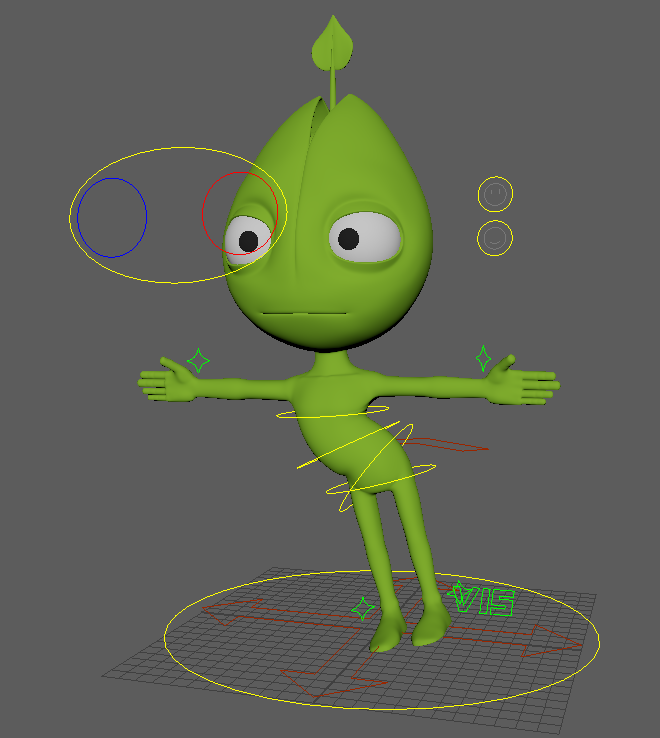
The character in Maya with a validation animation.
Reference the character in Maya, create a validation animation in Maya and export a .rumbaanim file using
the Export Rumba Animation  button on the Rumba shelf.
Export a validation animation in an Alembic file
Using the same Maya project, select the character geometry and export an Alembic file with the deformed character geometry.
Make sure to export the Alembic file with no namespace and with the visibility attribute.

Assemble the Rumba scene
In Rumba, Reference the exported character and load the previously exported .rumbaanim file using the .
Select one of the character controller.
Create a Diff layer with .
Select the Diff layer and load the previously exported Alembic file in the File attribute
Compare the geometries
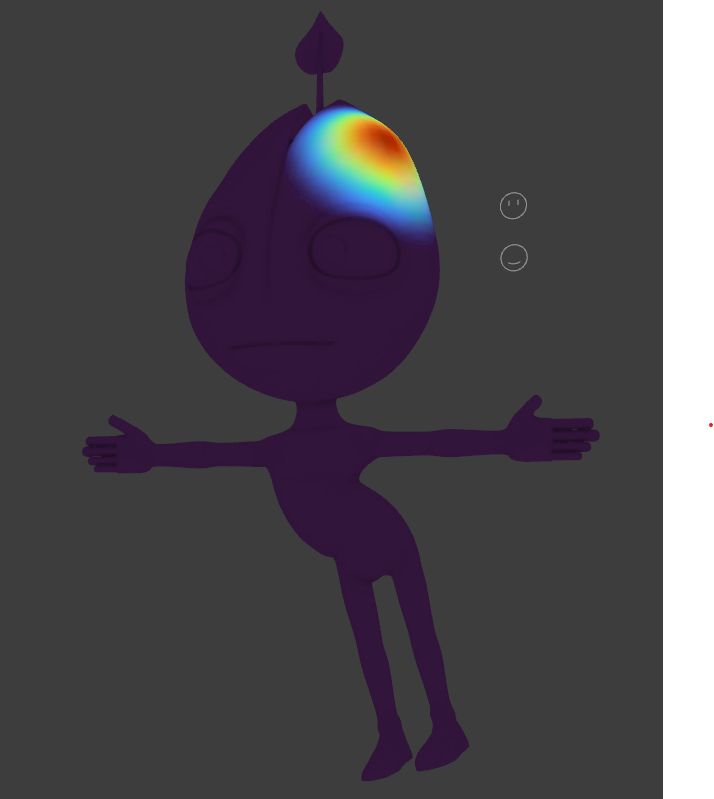
The character in Rumba with differences after some sculpting on the head.
If the geometries match, the character should appear in a heatmap showing the difference with the Alembic file geometries.
Compare the two set of geometry using the Diff layer attributes:
Time Offset: offset the Alembic file time
Asset Mode: the asset display mode (visible, hidden, heatmap, color1, color2)
File Mode: the alembic file content display mode (visible, hidden, heatmap, color1, color2)
Colormap: the colormap used to display the differences
Solid Color 1: the first user solid color
Solid Color 2: the second user solid color
Tolerance: Minimum error value to consider, in world units
Error RMSE: The current frame root mean square error, in world units
Error Max: The current frame max error, in world units